Phantom Blade Zero is fast, punishing wuxia combat: parries, dodges and weapon swaps all feel better when the frame rate is high and, more importantly, stable. This PC guide gives you the best settings for max FPS, the settings to turn off first, the right DLSS, FSR and XeSS mode for your graphics card, the frame generation rule that actually helps, a low-end PC version, a PS5 note, and stutter fixes that work.
Start with the quick settings below, then use the full tables to fine-tune for your hardware. If you are new to the game, read our Phantom Blade Zero Beginner’s Guide first, and when you are ready to build around a weapon, see the Phantom Blade Zero Best Weapons Guide.
Best settings for max FPS at a glance
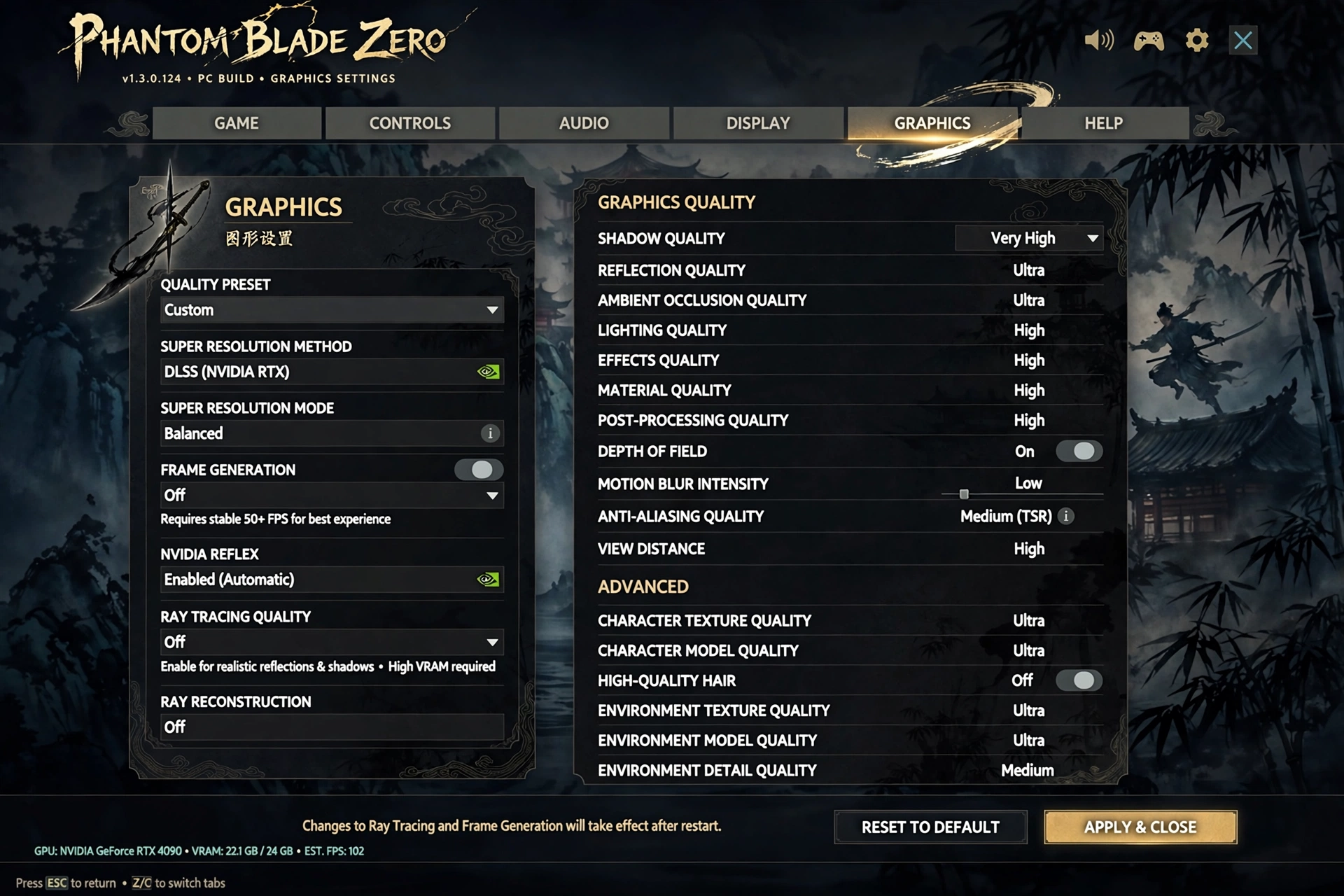
| Display Mode | Fullscreen |
| Resolution | Your monitor’s native resolution |
| VSync | Off |
| FPS Limit | Unlimited, or your monitor’s refresh rate |
| Upscaling | DLSS Quality, FSR Quality or XeSS Quality (see below) |
| Frame Generation | Only if your base FPS is stable at 60 FPS or higher |
| Ray Tracing | Off |
| Shadows | Medium |
| Textures | High on 8 GB VRAM or more, Medium on less |
| Motion Blur | Off |
| High-Quality Hair | Off – roughly a 19% performance penalty in independent testing cited by several guides |
Settings to turn off first
These are the biggest FPS wins, in order. Turn them down before you drop resolution or texture quality.
- High-Quality Hair: Off. Independent testing cited by several guides puts it at roughly a 19% performance penalty.
- Ray Tracing: Off. It is the single biggest cost for very little benefit in fast combat.
- Volumetric Fog and Clouds: Low. Expensive in open and foggy scenes.
- Shadows: Medium, or Low on a weaker GPU. Shadow resolution is costly and hard to notice while moving.
- Reflections: Low or Medium. Screen-space reflections cost frames in wet and indoor areas.
- Global Illumination: Low or Medium.
- Motion Blur: Off. It hides motion clarity and costs performance.
- Depth of Field and Film Grain: Off for max FPS and a cleaner image.
Full PC settings table
| Setting | Best for max FPS | Why |
| Display Mode | Fullscreen | Lowest latency, best performance |
| Resolution | Native | Use upscaling before lowering resolution |
| Render Scale | 100% | Lower only if upscaling is not available |
| Texture Quality | High (8 GB VRAM+), Medium (under 8 GB) | Textures use VRAM, not raw FPS, until VRAM runs out |
| Shadow Quality | Medium | Big FPS gain, small visual loss |
| Effects Quality | Medium | Combat effects stay readable |
| Post-Processing | Medium | Low if you still need frames |
| Anti-Aliasing | Use your upscaler, not TAA alone | Upscaling includes anti-aliasing |
| Low Latency Mode / Reflex | Enabled | Reduces input lag |
Upscaling: DLSS, FSR and XeSS
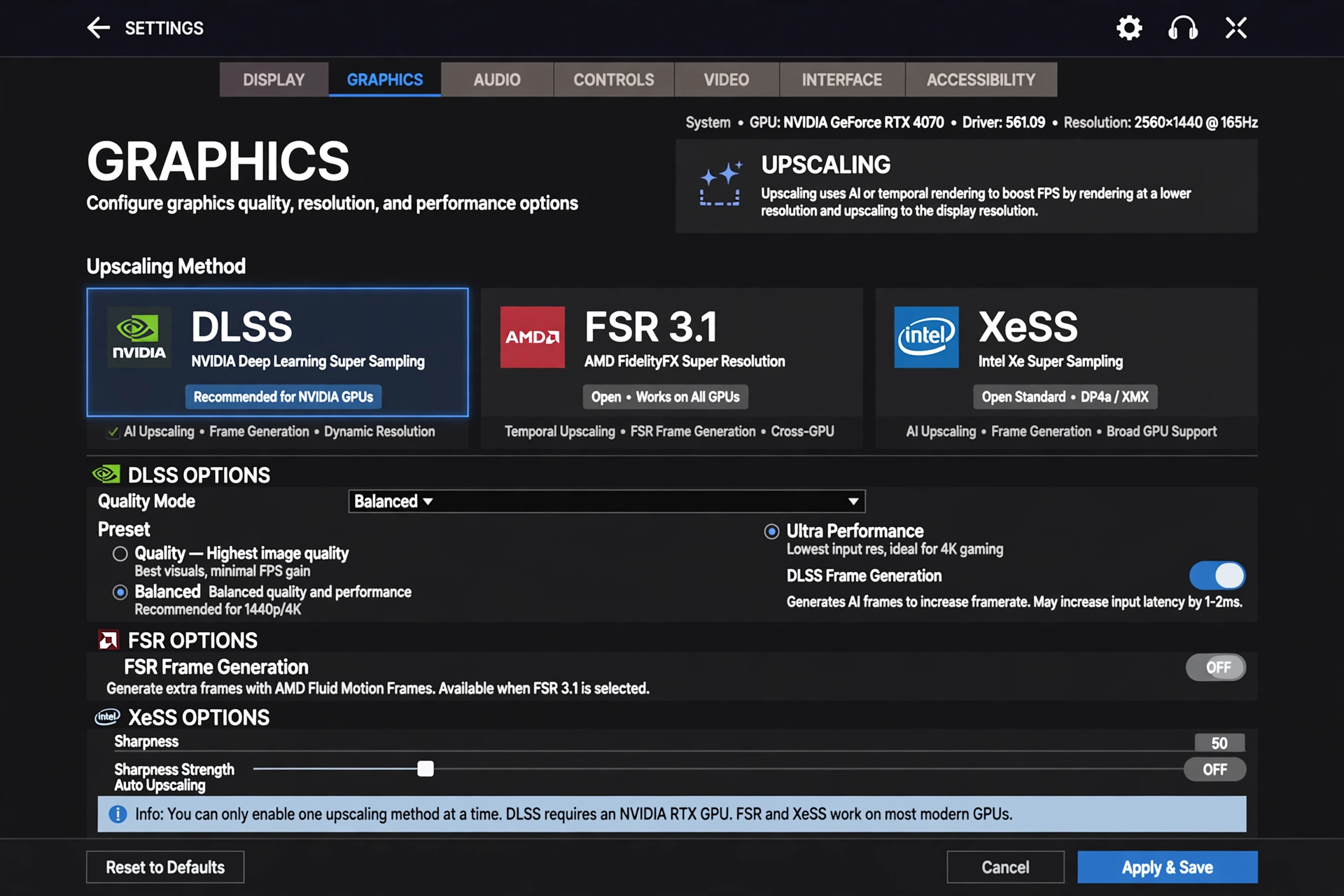
Upscaling is the best way to gain FPS without dropping resolution. Pick one upscaler only, matched to your graphics card, and never stack two upscalers at once.
| Graphics card | Best upscaler | Best mode |
| NVIDIA RTX | DLSS | Quality at 1440p, Balanced at 4K, Quality or Balanced at 1080p |
| AMD Radeon | FSR 3.1 | Quality at 1440p, Balanced at 4K or on weaker cards |
| Intel Arc | XeSS | Quality, or Balanced if you need more frames |
| Older or other GPUs | FSR | Balanced, or Performance on a low-end PC |
Quality keeps the sharpest image. Balanced is the sweet spot at 4K. Performance gives the most frames but can look soft, so use it only when Quality or Balanced cannot hold your target frame rate. If the image looks blurry, step up one quality level before raising other settings.
Frame generation rule
Frame generation can smooth motion, but it does not fix a low base frame rate and it adds input latency. Use this rule: only enable frame generation when your base FPS, with upscaling on and frame generation off, is already stable at 60 FPS or higher. If your base FPS is below 60 FPS, leave frame generation off and lower settings or use a stronger upscaling mode first.
- Base FPS 60 FPS or higher: frame generation is safe to try, if you like the feel.
- Base FPS under 60 FPS: keep frame generation off, because it adds latency for parry timing.
- Always pair frame generation with Low Latency Mode or NVIDIA Reflex Enabled.
- If combat feels delayed or the image smears, turn frame generation off first.
Low-end PC settings
If your PC is below the recommended specification, use this version. It prioritises a stable frame rate over image quality.
| Setting | Low-end PC |
| Resolution | 1080p, or 900p if 1080p still stutters |
| Upscaling | FSR Balanced, DLSS Balanced, or Performance as a last resort |
| Frame Generation | Off, unless base FPS is already stable at 60 FPS or higher |
| Textures | Medium |
| Shadows | Low |
| Effects and Post-Processing | Low |
| Ray Tracing | Off |
| Motion Blur, Depth of Field, Film Grain | Off |
Close browsers, launchers with overlays, recording software and background downloads before playing. A low-end PC loses the most frames to background apps and to a game installed on a hard drive.
PS5 note
On PS5 there are no PC graphics sliders. For the highest and most stable frame rate, choose Performance Mode over Quality Mode in the game’s display settings, if both are offered. Quality Mode looks sharper but runs at a lower frame rate, while Performance Mode prioritises smooth combat and parry timing. Keep the PS5 system software and the game updated, and play from the internal SSD rather than external storage.
Stutter fixes that actually help
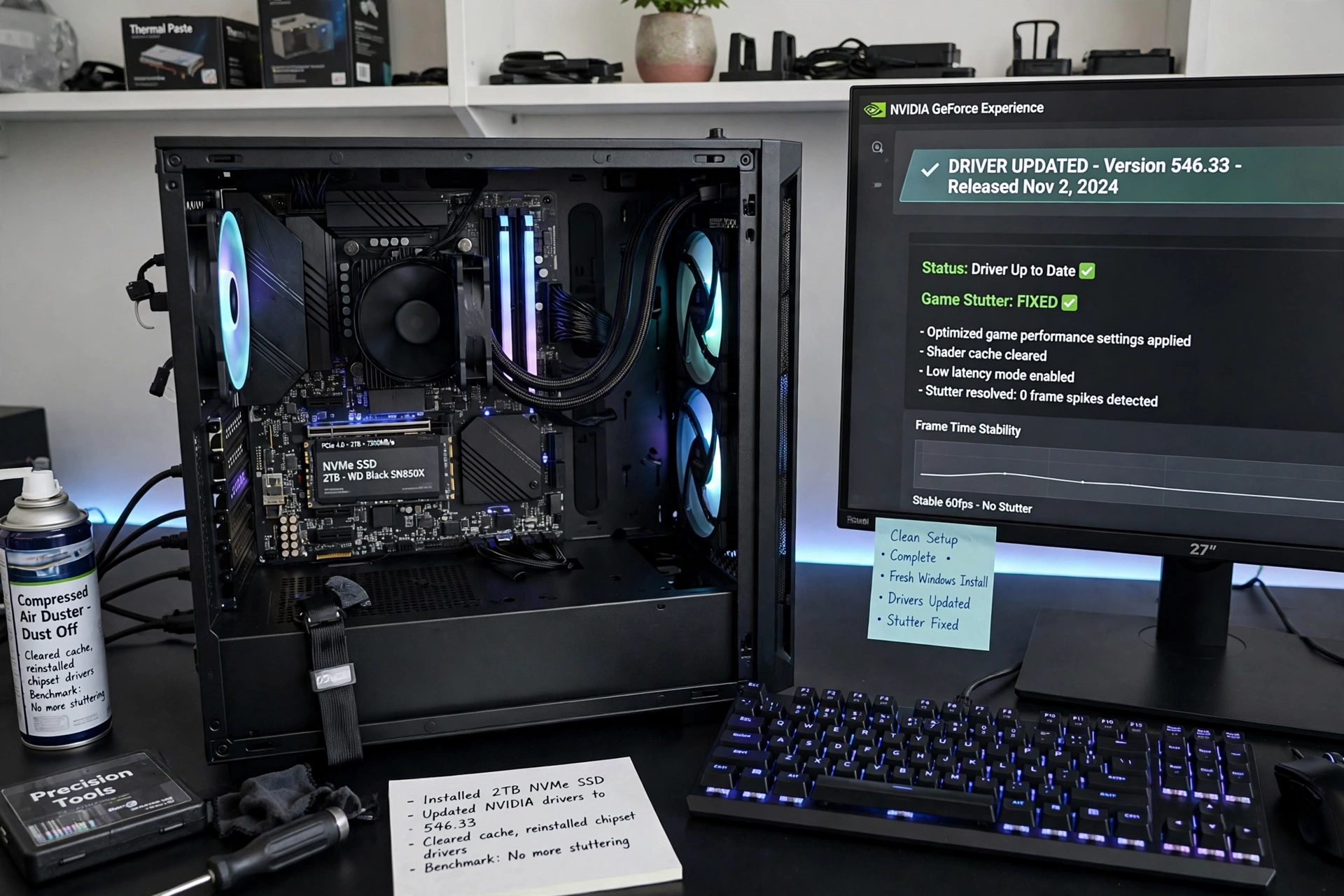
- Install the game on an SSD, preferably an NVMe SSD. A hard drive is the most common cause of traversal stutter.
- Update your graphics drivers to the latest stable version, and restart after updating.
- Launch driver note: At launch, S-GAME warned NVIDIA driver 621.01 could cause instability and recommended a clean install of 617.42. This was a release-time recommendation, so check current guidance before rolling back.
- Let shaders compile fully on first launch before judging performance.
- Verify the game files if stuttering starts suddenly after an update.
- Turn off background recording, overlays and streaming software while testing.
- Set Windows to High Performance power mode and close background downloads.
- Cap FPS slightly below your monitor’s refresh rate if you see tearing or uneven frame times, and keep VSync off unless tearing is worse than the latency cost.
- Do not run the game from a nearly full drive. Leave free space on the SSD for shader and system caches.
Official hardware targets
| Target | Resolution and settings | Frame rate target | Storage |
| Minimum | 1080p, Low settings | 30 FPS or higher | SSD required, 16 GB RAM |
| Recommended | 1080p to 1440p, Medium to High settings | 60 FPS | SSD, 16 GB RAM |
| High-end | 1440p to 4K, High to Ultra settings with DLSS, FSR or XeSS | 60 to 120 FPS | NVMe SSD, 32 GB RAM |
If your hardware is below the recommended target, use the low-end PC settings above rather than chasing Ultra presets. A stable 60 FPS on Medium always feels better than an unstable 90 FPS on Ultra in this combat system.
FAQ
What setting affects FPS the most in Phantom Blade Zero?
Ray tracing, followed by shadows, volumetric fog and reflections. Turn those down first before lowering resolution.
Should I use DLSS or FSR?
Use DLSS on an NVIDIA RTX card, FSR on an AMD card, and XeSS on an Intel Arc card. Only use one upscaler at a time, and start with Quality mode.
Is frame generation good for Phantom Blade Zero?
Only if your base FPS is already stable at 60 FPS or higher. Below that, it adds latency without fixing the base frame rate, which hurts parry timing.
Why does Phantom Blade Zero stutter?
The most common causes are a hard drive install, outdated graphics drivers, shader compilation on first launch, and background recording or overlays. Move the game to an SSD, update drivers, and close background apps.
What are the best settings for a low-end PC?
1080p, FSR or DLSS Balanced, Medium textures, Low shadows and effects, ray tracing off, and frame generation off unless base FPS is already stable at 60 FPS or higher.
Should I use Performance or Quality Mode on PS5?
Performance Mode, if you want the highest and most stable frame rate for combat. Quality Mode is sharper but runs at a lower frame rate.