PUBG has been out for nearly a decade, it is still the third most-played game on Steam with around 800,000 people dropping in every day, and it still runs like a game that enjoys embarrassing your PC. I have watched a rig that handles modern shooters without breaking a sweat stutter its way through Erangel’s final circles, and the fix was never a new graphics card. It was the settings. PUBG’s best settings for max FPS in 2026 are less about pretty graphics and more about a simple trade: give up the effects that hide enemies, keep the ones that help you spot them, and let your frame rate breathe.
That is the whole philosophy behind this guide. Every recommendation below reflects how the game actually behaves in 2026. Including the DLSS and FSR upscaling Krafton added in Update 43.1 and the console performance modes from Update 42.2. No ini-file magic, no ancient launch-option strings from 2018. Just the menus, the tweaks that still work, and the ones worth skipping.
Why PUBG Still Eats Frames in 2026
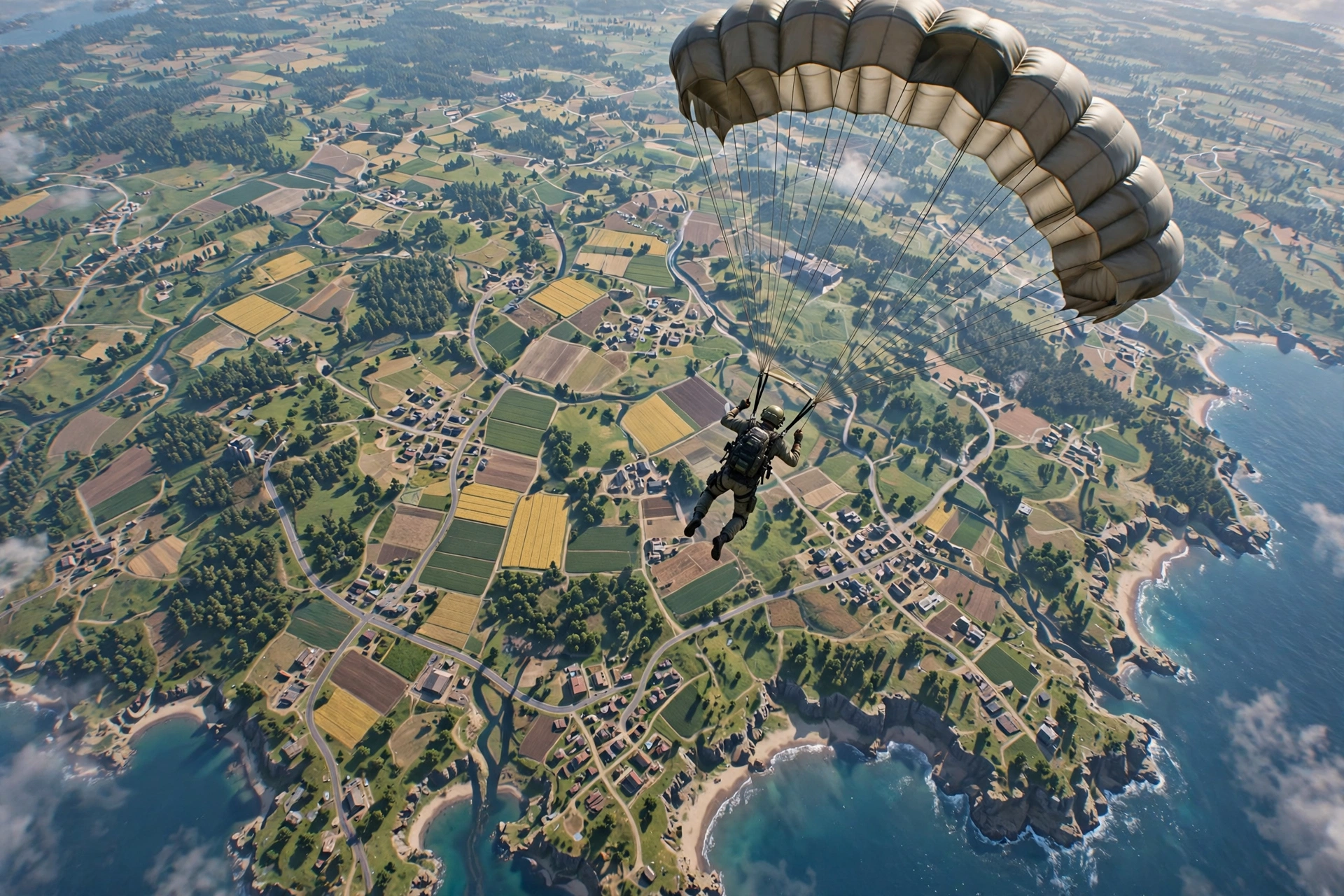
It helps to know what you are fighting. PUBG runs on Unreal Engine 4, drops 100 players onto an 8×8 kilometre map, and asks your CPU to track every one of them, their vehicles, the loot, and a shrinking blue zone. All at once. The game leans harder on your processor than most shooters do, which is why a strong GPU alone does not save you, and why frame drops usually show up in the worst possible moments: landing in a hot drop, or the final circle with a dozen players left.
The good news is that most of the performance cost sits in a handful of settings. Turn those down and the game feels different: smoother aiming, faster reactions, and, the part people forget, a clearer picture. In PUBG, low settings are not a compromise. They are the competitive standard, because grass, shadows, and bloom give the enemy somewhere to hide.
What Are the Best Settings for PUBG in 2026?
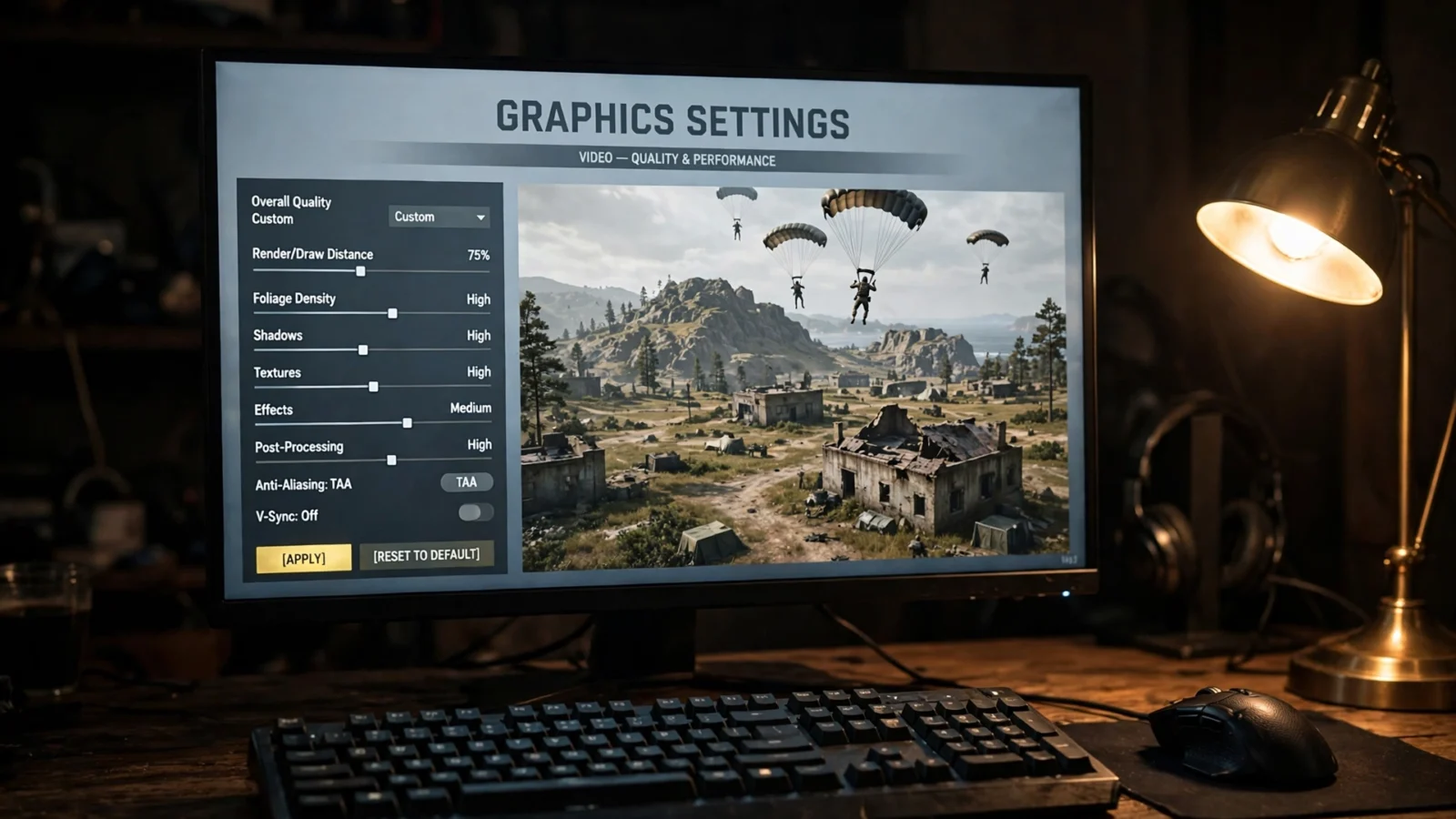
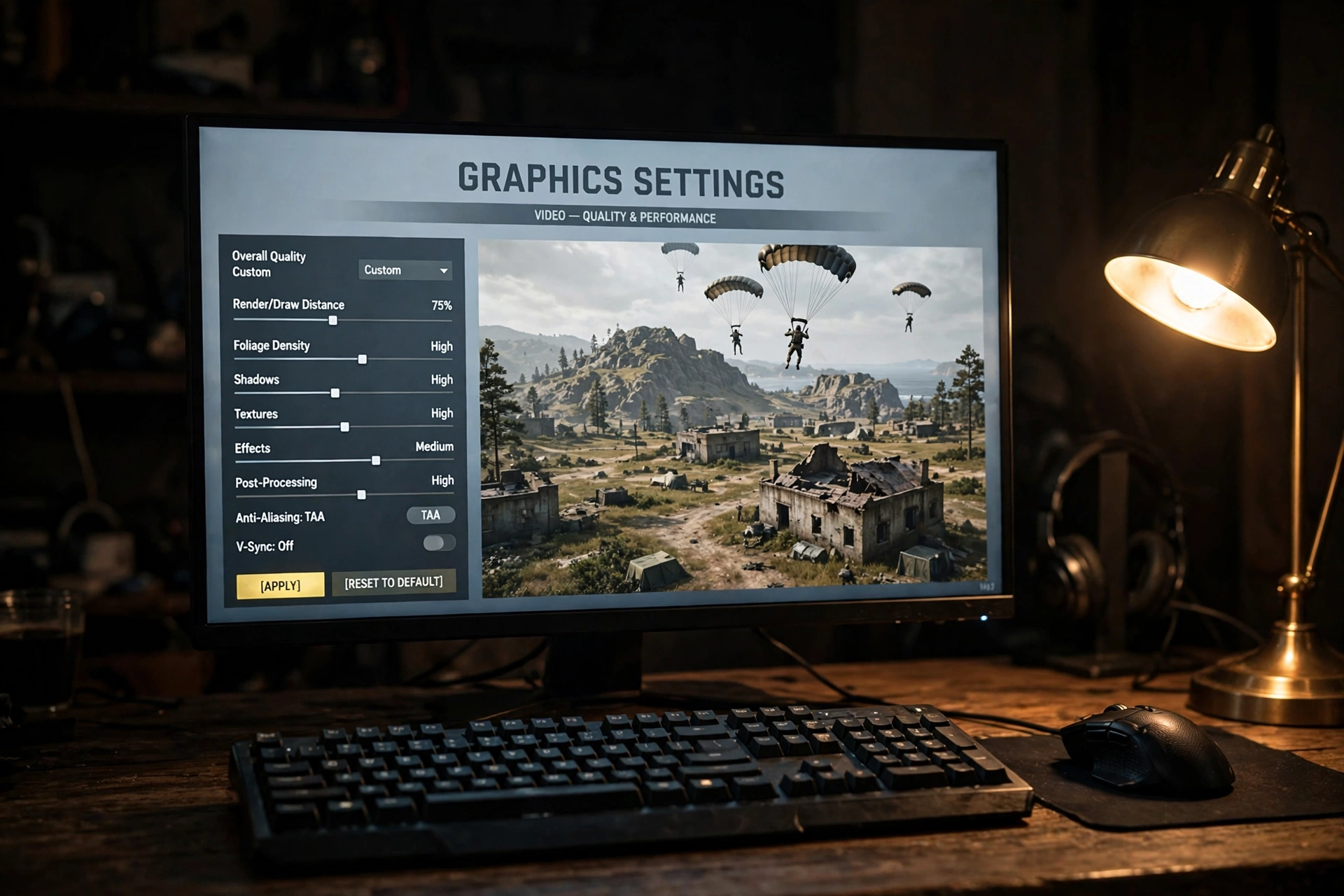
Here is the short version. If you only have two minutes, apply this table and jump into a match. The sections below explain the reasoning behind each choice, so you can adjust it to your own hardware instead of copying numbers blindly.
| Setting | Recommended Value | Why |
|---|---|---|
| Display Mode | Fullscreen | Lowest input lag and the most stable frame pacing |
| Resolution | Native (1920×1080 for competitive play) | Lower resolutions blur distant targets; keep it native |
| Render Scale | 100 | Below 100 turns everything to mush; above 100 costs frames for nothing |
| Anti-Aliasing | Medium to Ultra | Ultra is TAA. Smoother and better at spotting distant movement |
| Textures | Medium to High | Cheap on modern GPUs and keeps loot and enemies readable |
| Shadows | Very Low | Huge FPS gain and brighter interiors. Enemies cannot hide in dark corners |
| Post-Processing | Very Low | The single biggest win: removes bloom and colour grading that wash out silhouettes |
| Effects | Very Low | Explosions and smoke look simpler, frames stay stable in fights |
| Foliage | Very Low | Less grass for a prone enemy to vanish into. Frames and visibility both improve |
| View Distance | Medium to Ultra | Players render at the same distance regardless, but buildings stay visible further out |
| Motion Blur | Off | It smears the screen exactly when you need a sharp picture |
| V-Sync | Off | Removes tearing at the cost of input lag. Not worth it in a shooter |
| DirectX Version | DirectX 11 Enhanced | Still the most stable choice; DX12 can stutter and crash |
| Sharpen | On | Helps distant enemies stand out against terrain |
Start from the Very Low preset, then raise only Textures, Anti-Aliasing, and View Distance to the values above. Think of Very Low as a clean baseline, not the final config. The settings you raise back up are the ones that earn their frames by helping you see.
Graphics Settings Explained, One by One
Post-Processing is the setting that matters most. It controls bloom, colour grading, and ambient effects, and on anything above Very Low it washes out distant enemy silhouettes while costing you frames. Every competitive settings guide agrees on this one: set it to the lowest value and leave it there. If you change one thing after reading this article, make it this.
Shadows are the second-biggest lever. Unlike some shooters, shadows in PUBG tell you almost nothing about where enemies are. The maps are too big and the fights too open for shadow information to matter. What shadows do is eat frames and darken the interior corners where players hide. Very Low brightens those spaces and hands you a large FPS gain at the same time.
Foliage is a double win. Lower foliage means less grass and brush on screen, which means fewer objects for your GPU to draw and fewer places for a prone enemy to disappear. On Very Low, a player lying in a field is a player you can actually see.
View Distance is the setting people misunderstand. It controls how far away buildings and terrain draw in. But players render at the same distance regardless. Low view distance does not hide enemies, it hides the buildings they could be standing behind. Most pros run it on Medium; Ultra costs surprisingly little if your frames allow it.
Anti-Aliasing is a genuine judgement call. On Ultra it uses TAA: a smooth, slightly soft picture. On Very Low it is effectively off, with shimmer that can make a distant player flicker in and out of view. TAA helps you spot enemies at 200 metres and beyond, so if your GPU can handle it, Ultra is the better competitive choice. On a weaker card, drop it to Medium first.
Render Scale is the dial you reach for last. Keep it at 100. Dropping it below 100 blurs the whole game, including the distant targets you are trying to spot, and raising it above 100 costs a lot of performance for almost no visible gain. If you still need frames after everything else is tuned, this is where they live. But try the upscaling options first.
DLSS and FSR: The Free FPS Update 43.1 Added
Update 43.1, which went live on PC in September 2026, added resolution upscaling to PUBG under Settings > Graphics > Advanced. You get three choices: NVIDIA DLSS, AMD FSR, or off. DLSS 4.5 and FSR 4.1 are the supported versions, and they work the way upscaling always works: the game renders at a lower internal resolution and reconstructs a sharp image, buying you frames without the blur of simply lowering render scale.
If you own an RTX card, turn DLSS on in Quality mode. It is the single easiest FPS gain in the game right now, and it stacks with the low settings above. On an AMD card, FSR does the same job. The gain is real but variable: biggest on a mid-range card at 1440p, smaller on a high-end card at 1080p, where the game is CPU-bound anyway. The update details are in the official patch notes on pubg.com, and GameMapa’s PUBG FPS settings guide is a useful cross-check for what each graphics option does.
How to Get More FPS in PUBG on a Low-End PC
So your PC is not a monster. Good news: PUBG is one of the most tunable games on Steam, and the low-end playbook is straightforward. Apply the table above first, then work through these.
- Use the two launch options that still work. In Steam, right-click PUBG, choose Properties, and add this to Launch Options:
-USEALLAVAILABLECORES -malloc=system. The first forces Unreal Engine 4 to use all of your CPU cores; the second changes how the game allocates memory. Ignore the long launch strings floating around in guides from 2018. Krafton has locked most of those parameters over the years, and only these two still do anything. - Stick with DirectX 11 Enhanced. PUBG’s listed system requirements still specify DirectX 11. The DX12 option has existed since Update 14.1, but it is known to be less stable, and a later patch even had to fix a crash where GPU memory kept growing while the client was minimised in DX12 mode. DX11 Enhanced is the safe, fast default.
- Turn off Windows Memory Integrity (VBS). In Windows Security, go to Device Security, then Core Isolation, and switch Memory Integrity off. PUBG is unusually sensitive to this, and testing by optimisation guides puts the gain at roughly 5–15% FPS. Restart your PC after changing it.
- Enable XMP in your BIOS. If your RAM is running below its rated speed, you are leaving performance on the table. And PUBG, being CPU-heavy, notices slow memory more than most games. Enabling XMP can improve your 1% lows noticeably, which is the stutter you feel in busy fights.
- Close the background apps before you drop. A browser with twenty tabs, Discord’s hardware acceleration, and a recording tool running at the same time can cost you more frames than any single graphics setting. Keep it simple on match day.
- Cap your FPS just below your refresh rate. If you play on a 144Hz monitor, cap at 141. It keeps frame times consistent and stops the stutter that comes from frames bouncing between 90 and 200.
If you are still stuttering after all of that, the honest answer is usually the CPU. PUBG’s competitive spec, an i9-9900K or Ryzen 7 3800X class CPU with an RTX 2060 Super or RX 5700 and 32GB of RAM, exists precisely because smooth frames in this game are a processor problem first and a graphics problem second.
Best PUBG Sensitivity and FOV Settings
Settings are not only graphics. Your sensitivity and field of view decide whether you can track a moving target at 100 metres or spin around fast enough when someone flanks you, and the wrong values undo every frame you just gained.
- Mouse DPI: 400–800, with 800 the most common among competitive players. Higher DPI with lower in-game sensitivity gives you smoother tracking; very high DPI with high sensitivity makes your aim jittery.
- General Sensitivity: around 30–40. ADS sensitivity roughly 35, with a vertical multiplier near 1.0. These are starting points, not gospel. Spend ten minutes in the training grounds and adjust until a flick to a target lands where you expect it to.
- FPP Camera FOV: 90–103. Most players settle between 90 and 97: wide enough to notice movement at the edge of the screen, narrow enough that distant enemies do not shrink into pixels. Push it to 103 only if you play on a large ultrawide monitor.
- Refresh rate: set your monitor to its maximum. 144Hz at minimum, 240Hz if you have it. Higher refresh rates cut input delay, and in a game where the first shot often decides the fight, that matters more than any texture setting.
Best PUBG Settings for PS5 and Xbox Series X
Console players got their own upgrade in Update 42.2, which arrived in July 2026. PUBG on PlayStation 5, PS5 Pro, Xbox Series X, and Xbox Series S now offers two graphics modes:
- Resolution Priority (default): sharper image and more detail, capped at 60 FPS on all displays.
- Frame Rate Priority: smoother visuals and more responsive controls at up to 120 FPS. But only on a display running at 120Hz or higher.
If you own a 120Hz TV or monitor, Frame Rate Priority is the right call for a competitive shooter, full stop. The jump from 60 to 120 FPS changes how the game feels in a way no resolution bump can match, and PUBG’s console version has always been the place where frame rate mattered more than prettiness. On a standard 60Hz TV, stick with Resolution Priority, since the 120 FPS mode cannot do anything your screen cannot show.
One console habit worth building: switch your TV to game mode and turn off motion smoothing. The input lag from extra TV processing will quietly undo the benefit of the 120 FPS mode.
FAQ: PUBG Settings Questions, Answered
What are the best settings for PUBG in 2026?
Fullscreen at your monitor’s native resolution, Render Scale 100, Textures Medium to High, Anti-Aliasing Medium to Ultra, Shadows, Post-Processing, Effects, and Foliage on Very Low, View Distance on Medium or higher, Motion Blur and V-Sync off, DirectX 11 Enhanced, and DLSS or FSR turned on if your card supports it. That combination gives you the highest stable frame rate while keeping enemies visible. Which, in PUBG, is the whole point.
How do I fix PUBG stuttering and FPS drops?
Start with the settings table above, then add the two working launch options (-USEALLAVAILABLECORES -malloc=system), switch to DirectX 11 Enhanced, turn off Windows Memory Integrity, enable XMP for your RAM, and close background apps before playing. If stuttering persists mainly in hot drops and final circles, your CPU is the bottleneck. That is where 100 players and a shrinking zone hit hardest, and no graphics setting can fix a processor that is out of headroom.
Does PUBG run at 120 FPS on console?
Yes. On PlayStation 5, PS5 Pro, Xbox Series X, and Xbox Series S, since Update 42.2 in July 2026. Choose Frame Rate Priority in the graphics settings, and make sure your display supports 120Hz, because the mode only works on 120Hz or higher screens. On a 60Hz display, the game stays at 60 FPS under Resolution Priority.
The Bottom Line
PUBG rewards players who treat settings as part of the game, not as a chore before it. The pattern is simple and it has held for years: crush post-processing, shadows, effects, and foliage; keep textures, anti-aliasing, and view distance up; turn on DLSS or FSR; and use the two launch options that still work.
If you are new to the game as well as to its settings, our PUBG Beginner’s Guide: Win Your First Chicken Dinner covers landing, looting, and surviving your first matches. And if you like tuning other games the same way, our Dota 2 best settings guide and Modern Warfare 4 best settings guide use the same approach. Maximum frames, maximum visibility, nothing wasted. Now go drop in. Erangel is waiting, and the circle will not wait for you.