Counter-Strike 2 is one of the most played games on Steam right now — over half a million players are logged in at any given moment in 2026, and millions more queue up every day. It’s also demanding in a specific way: CS2 is heavily CPU-bound at the resolutions competitive players use, which means even a strong graphics card can’t save you if the settings are wrong. The good news? The defaults are terrible for competition, and fixing them takes about ten minutes. This guide covers the best CS2 settings for maximum FPS — the video settings pros actually use, the launch options that matter, and how to fix stuttering, lag, and low FPS without guessing.
What Settings Do CS2 Pros Use in 2026?
If you want a shortcut to the right answer, look at what the best players in the world actually do. In 2026, around half of the professional Counter-Strike 2 scene plays at 1280×960 in 4:3 stretched — it’s the dominant resolution in competitive play. Another large group runs 1024×768 stretched for maximum FPS, and a smaller group sticks with 1920×1080 native for sharper visuals and the fullest field of view.
Why stretched? Simple, really. Stretching a 4:3 image across a 16:9 monitor makes player models appear wider — easier to hit, in theory — while the lower resolution directly buys you frames. Native 16:9, on the other hand, gives you the widest view and the clearest image. The sensible approach is to try the pro standard (1280×960 stretched) for a week, then compare it honestly against native 1080p. Whichever you keep, always play in Fullscreen (exclusive mode), because borderless windowed adds input lag and costs frames. That one’s not really up for debate.
CS2 Best Video Settings for Max FPS
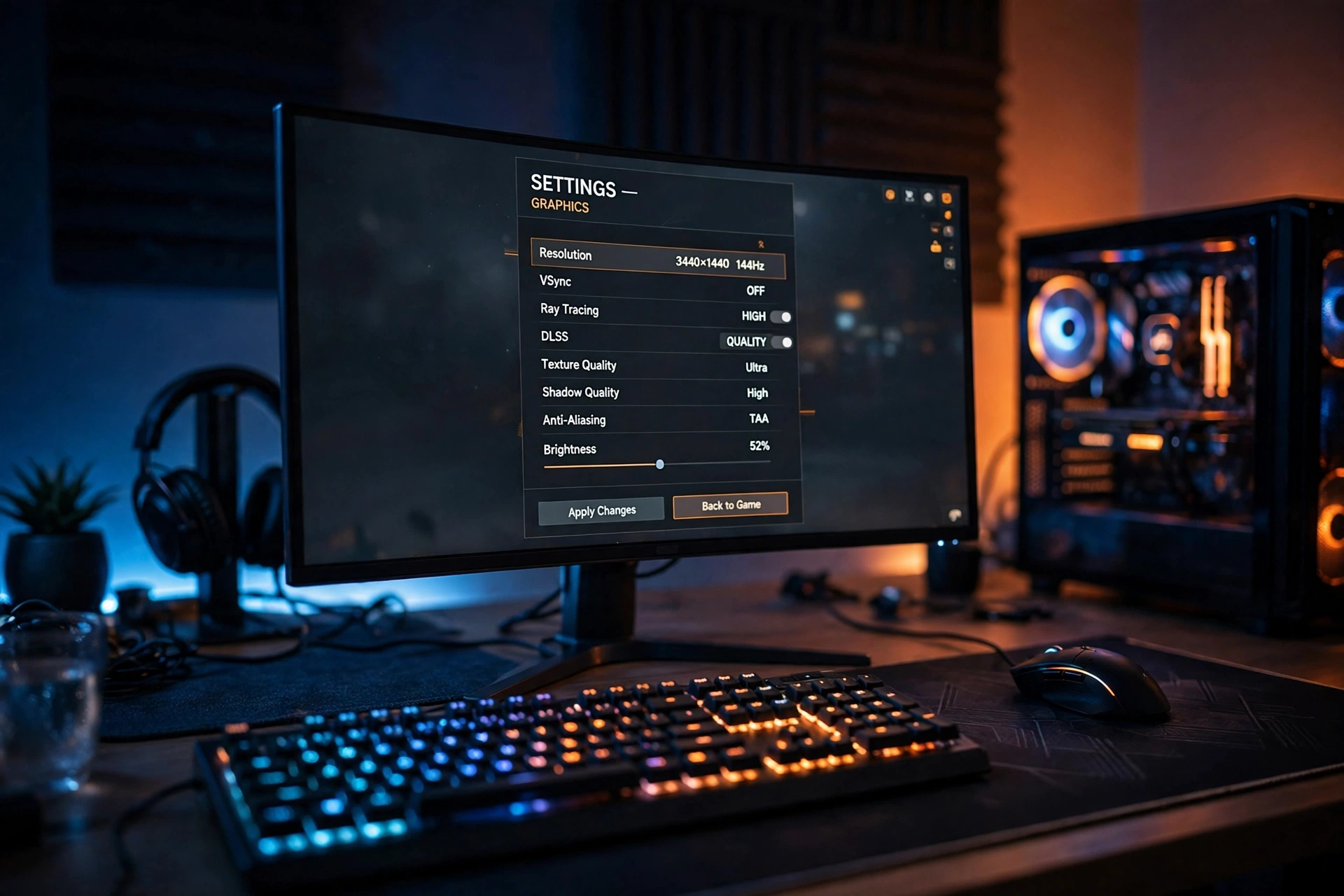
Open Settings → Video → Advanced Video and apply these values. They are the biggest single lever for how to increase FPS in CS2, far outweighing anything you can do in Windows or your GPU driver:
- Display Mode: Fullscreen — reduces input lag and frees up FPS.
- Refresh Rate: the maximum your monitor supports (144Hz, 240Hz, 360Hz). This one is critical — playing at 60Hz on a 240Hz monitor is the most common FPS waste in the game.
- Brightness: 110% — enemies are easier to spot in dark corners.
- Boost Player Contrast: Enabled — makes opponents stand out against the environment.
- Multisampling Anti-Aliasing (MSAA): None — anti-aliasing is one of the most expensive settings in the game, worth dozens of frames.
- Global Shadow Quality: Low — shadows are one of the heaviest costs in CS2. However, if you can afford Medium, keep it: Medium keeps enemy shadows readable, so you can spot a shadow before the player model rounds a corner. This is the one place where “max FPS” and “win more duels” slightly disagree.
- Model / Texture Detail: Low — cheap FPS with almost no competitive downside.
- Shader Detail: Low, and Particle Detail: Low — particle effects matter most during smoke and molotov spam, exactly when frames are precious.
- Ambient Occlusion: Disabled — free frames, minimal visual loss.
- High Dynamic Range (HDR): Performance, and FidelityFX Super Resolution: Performance if your GPU is weak, off if it is strong.
- V-Sync / Wait for V-Sync: Disabled — it adds significant input delay. If you get screen tearing, fix it with G-Sync or FreeSync in your GPU driver panel instead.
- Motion Blur: Disabled — blurry movement looks “cinematic” but costs clarity in gunfights.
- NVIDIA Reflex Low Latency (NVIDIA GPUs): Enabled + Boost — cuts system latency. AMD Anti-Lag 2.0 is the equivalent toggle for AMD users.
- Maximum FPS In Game: uncapped (or use the console command
fps_max 0). Even on a 240Hz monitor, running more frames than your refresh rate reduces input lag, because the engine processes your mouse input more frequently.
One honest caveat: don’t treat every settings guide online as gospel, because CS2 changed what old CS:GO guides say. Valve removed the old net_graph entirely — to measure your gains, open the console (the tilde key) and type cl_showfps 1, which draws a lightweight FPS counter. You can also pin readouts in Settings → Game → Telemetry, which is Valve’s intended replacement for the old net graph.
How to Increase FPS in CS2 with Launch Options
Launch options are the text commands Steam adds when the game starts. Right-click CS2 in your Steam library, choose Properties, and paste this into the launch options box. For more detail on every command, the community-run CS2 FPS optimization guide is one of the most thorough references online, and it was updated against CS2’s actual settings rather than old CS:GO leftovers.
-novid -high -freq 144 -tickrate 128 +cl_forcepreload 1
-novid— skips the intro video, saving a few seconds on every launch.-high— starts CS2 with high process priority in Windows Task Manager, so background apps cannot steal CPU time.-freq 144— forces the game to run your monitor at 144Hz (change the number to 240 or 360 if you have a faster display).-tickrate 128— forces 128-tick servers in offline practice mode, so your aim training matches real server conditions.+cl_forcepreload 1— preloads map textures at launch, which eliminates the micro-stutters that happen when textures stream in mid-round.
That same CS2 FPS optimization guide is worth bookmarking if you want to dig into each command further — it’s one of the most thorough references online, and it was checked against CS2’s actual settings rather than old CS:GO leftovers.
How to Fix CS2 Stuttering, Lag and Low FPS
Before touching anything else, figure out what is actually holding your frames back. CS2 is usually CPU-bound at competitive resolutions, which surprises a lot of people: if lowering every video setting barely changes your FPS, your CPU is the bottleneck, and the wins come from Windows tuning or a faster CPU — not from dropping texture quality even further. If dropping the resolution jumps your FPS dramatically, you are GPU-bound, and the video settings above are your fix. (Laptop players: stay plugged in and use the performance power plan, or you are benchmarking your battery instead of your hardware.)
For players wondering why CS2 lags even on a decent PC, the usual culprits are predictable: background software eating the CPU (Chrome with twenty tabs, Discord overlays, recording apps), outdated GPU drivers, or the game simply capped somewhere. Benchmark consistently when testing: load the same map, stand in the same spot — Dust2 mid or Inferno banana are good stress spots — note your FPS, change one setting, and re-check. And remember that smokes and firefights are the real test; an empty map inflates your numbers.
Network lag is a separate problem from FPS lag, and it’s worth keeping the two apart. If your game feels “behind” your inputs — shots registering late, enemies teleporting — open the console and set rate 1000000, cl_cmdrate 128, cl_updaterate 128, and cl_interp_ratio 1. These maximize the data exchange rate between your PC and the servers, shrinking the gap between what you see and what is actually happening. If your ping itself is spiking, no setting fixes that — it is your connection or the server, plain and simple.
What Are the Best CS2 Settings for Low-End PCs?
On older hardware, pull everything above together into one plan: 1280×960 stretched at the lowest video preset, FidelityFX Super Resolution on Performance, HDR on Performance, and fps_max set to a value your PC can actually hold (a stable 120 FPS feels better than a bouncing 90–200). Then close everything you do not need: browsers, recording software, and in-game overlays all tax a weak CPU. Update your GPU drivers, and on Windows turn on Game Mode so background Windows Update downloads do not ambush you mid-match.
Be honest with yourself about expectations: optimization tunes the hardware you have — it does not replace it. CS2 is heavily CPU-bound, unlike a GPU-heavy single-player game such as Cyberpunk 2077, where dropping resolution always buys big frames. In CS2, once you are CPU-bound, the next real upgrade is the CPU itself.
CS2 Settings FAQ
How do I show FPS in CS2?
Open the console and type cl_showfps 1 for a small FPS counter in the corner. Alternatively, go to Settings → Game → Telemetry and set the FPS and ping readouts to always display — that is Valve’s official replacement for CS:GO’s old net_graph.
Should I use VSync or G-Sync in CS2?
For competitive play, V-Sync stays off — it adds significant input delay. If screen tearing bothers you, enable G-Sync or FreeSync in your GPU driver panel instead; driver-level variable refresh rate smooths tearing without the same input-lag penalty.
Is 4:3 stretched worth it if I have a high-end PC?
On a high-end PC, the FPS argument for stretched mostly disappears — you can hold high frame rates at native 1080p anyway. But about half of the pro scene still plays 1280×960 stretched, so the remaining reasons are feel-based: wider-looking player models and years of muscle memory. If you are new to the game, start with native 1920×1080 and only switch to stretched if you genuinely prefer it.
That covers everything that actually moves the needle: the pro-standard resolution, the video settings that buy frames, launch options, NVIDIA Reflex, and how to tell CPU limits from GPU limits. Apply them, measure with cl_showfps 1, and give the changes a full day of matches before judging — muscle memory needs time. For more on this year’s big shooters, see Modern Warfare 4’s launch at the top of the Steam charts, and our Elden Ring beginner’s guide for a very different kind of challenge.